Vocal Remover App for iPhone & Android
Riffloop is a vocal remover and stem splitter app for iPhone and Android. It splits a song into four or six parts on the phone itself — nothing uploaded — then lets you mute, loop, slow down and re-key them.
Add a song from your files, or capture what another app is playing, and pick a job: remove the vocals, split every instrument onto its own fader, or take out just the part you play. The song stays on your phone the whole time, and the parts stay playable with an A-B loop, a speed control that holds the pitch, a key change, the chords and a metronome that follows the record.


Free to download. The free plan splits sections of up to 60 seconds, five times a day; Pro splits whole songs. On a computer? Add Riffloop to Chrome to use it on YouTube.
Last updated · maintained by the Riffloop team
The App, at a Glance
Riffloop: Stem & Vocal Remover is a free app for iPhone and Android that separates a song into its parts on the phone and keeps them playable for practice. It takes files and captured audio, not links.
- 🎤 Three jobs: Remove vocals, Stem separation, or Backing track
- 🎚️ Four parts free, six on Pro: vocals, drums, bass, guitar, piano and the rest
- 🔒 On the phone: the song is never uploaded
- 🔁 Practice tools: A-B loop, 50–150% speed with the pitch held, ±12 semitones of key
- 🎸 Chords and click: guitar shapes that move with the song, and a metronome locked to its beat
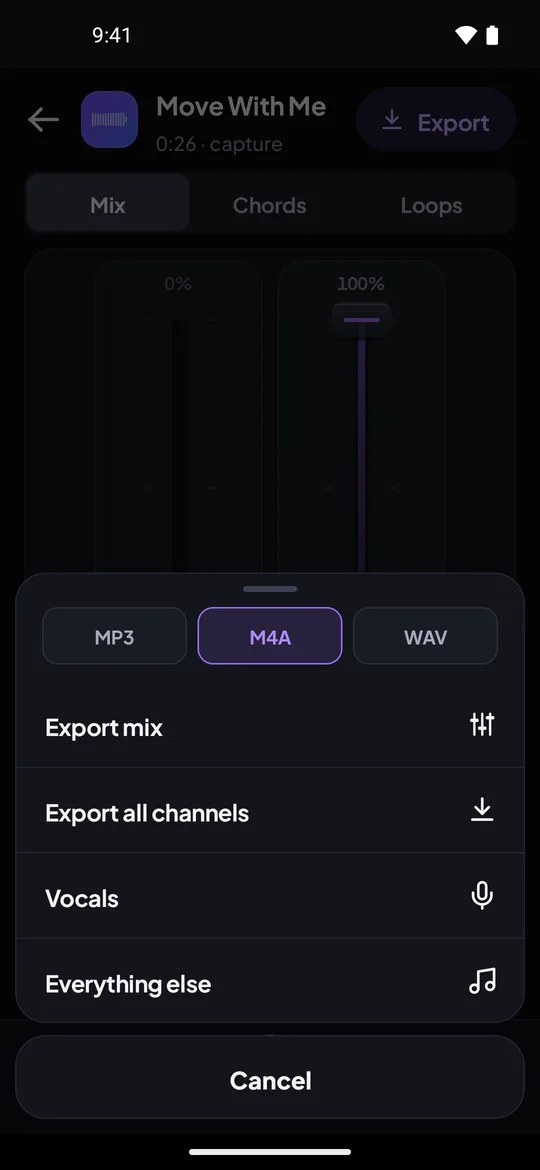
- 💾 Export: the mix, every part or one part, as MP3 or M4A (WAV on Pro)
- 📱 Needs: iOS 26 or later, or Android 12 or later
What Does a Vocal Remover App Do?
A vocal remover app takes a finished song and separates the singing from the band, so you can play the instrumental on its own. A stem splitter goes further and separates each instrument. Riffloop's app does both, and adds a third mode that mutes only the part you play.
Remove vocals
The app separates the voice from the band, so you can play the instrumental on its own — a karaoke track made from the real recording — and bring the vocal back when you want to check a phrase.
Stem separation
Every part gets its own fader: four parts (vocals, drums, bass and the rest) or six, which adds guitar and piano. Solo the bass to hear what it's actually playing, or drop the drums to practise your timing.
Backing track
Pick the instrument you play and Riffloop takes it out of the band, so you play your part over everything else. You can take out more than one — guitar and drums, say — and bring your part back up any time to check yourself against the record. The backing track maker page explains the idea in more depth.
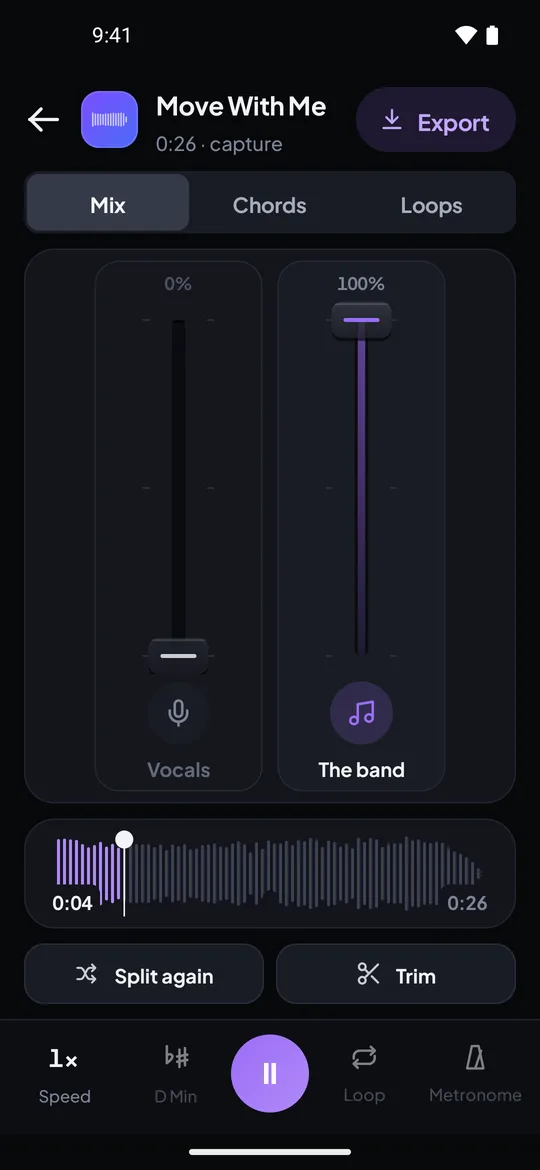
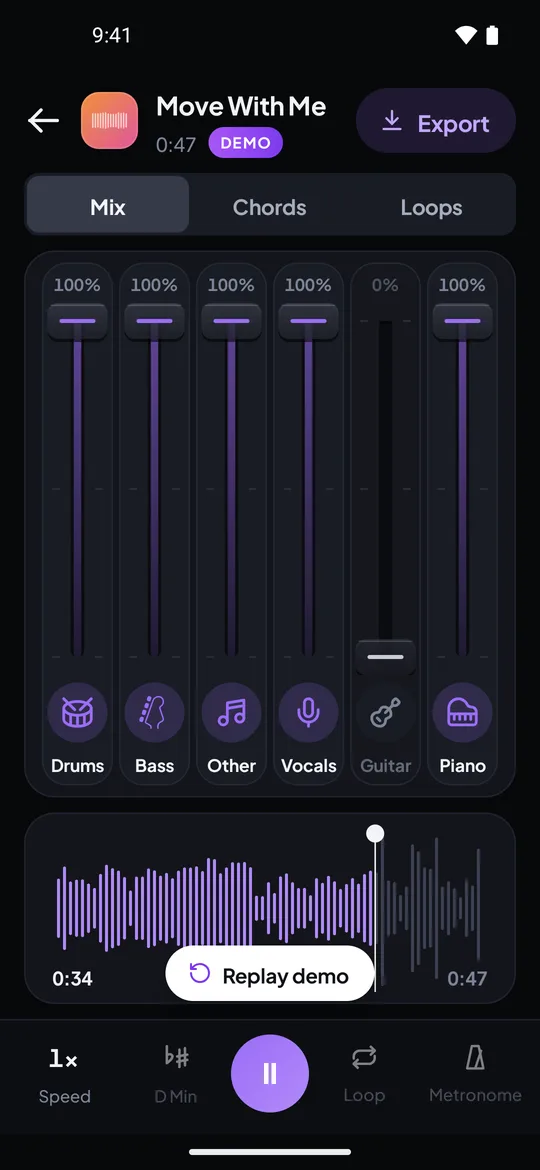
Real screenshots from the Riffloop Android app, using our own demo song, Move With Me. Six parts are on Pro; the free plan splits into four.
How It Works on Your Phone
Install the app, add a song, choose what you want from it, and the phone splits it. The whole flow takes five steps, and the demo song lets you learn the controls before you spend a separation.
- Install and sign in. Riffloop is free on the App Store and Google Play. Sign in with Apple (on iPhone), Google or email; an account you already use on riffloop.app works too.
- Play the demo song first. It arrives already split into six parts, with a short walkthrough of the mixer — it costs nothing.
- Add your song. Pick an audio or video file up to 10 minutes long, or use Capture audio to record what another app on the phone is playing.
- Choose the job. Remove vocals, Stem separation (four or six parts) or Backing track, for the whole song or a section.
- Practise. The song opens in the mixer: mute and solo parts, loop the hard bar, change the speed and key, read the chords, then export what you need.
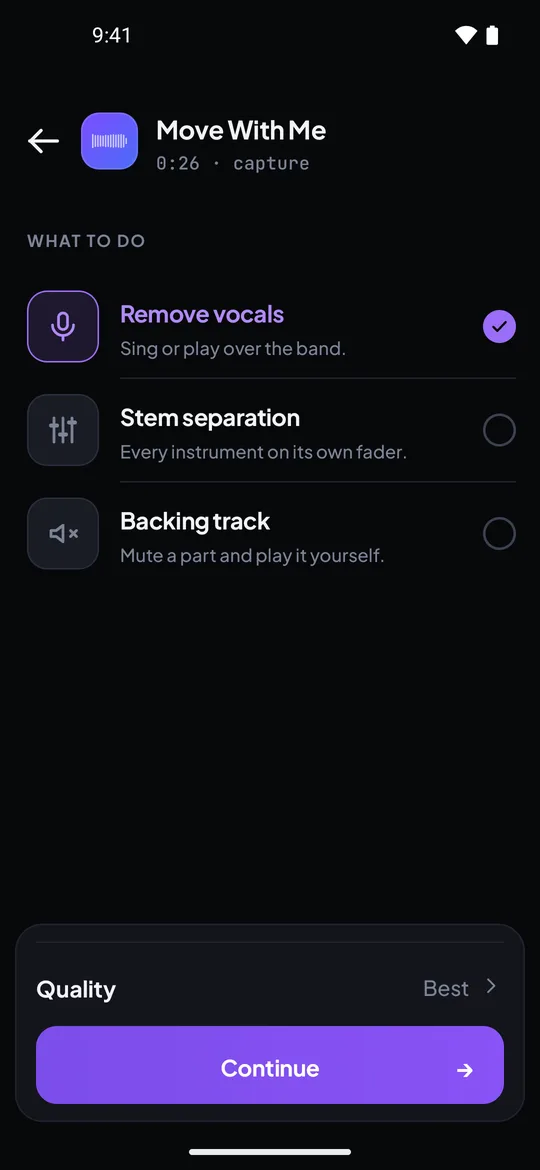
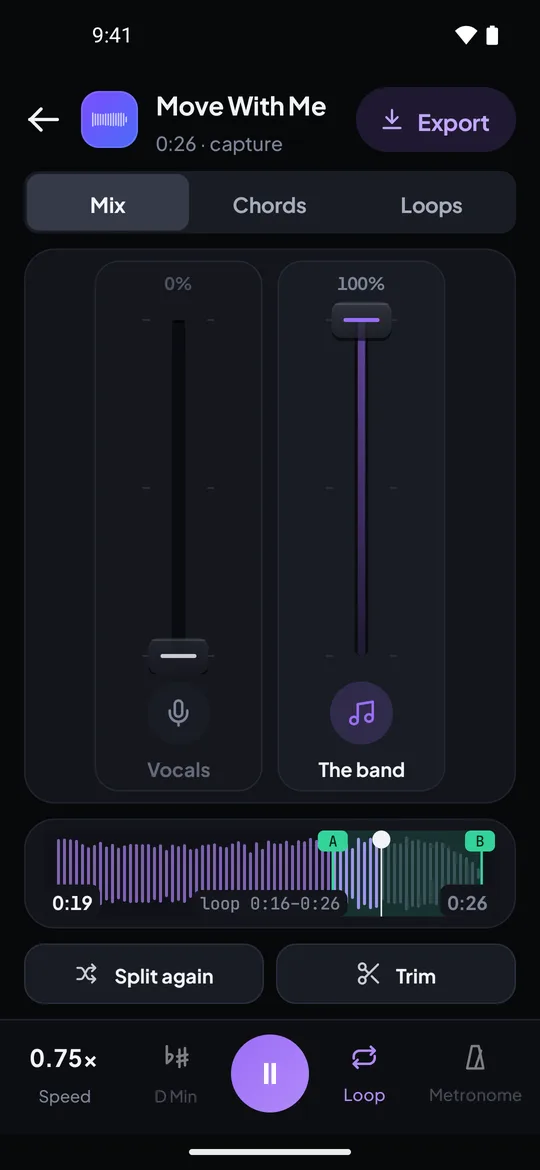
The screen-by-screen guides are in the Help Centre: Riffloop on iPhone and Riffloop on Android.
Why Splitting on the Phone Matters
Most vocal remover apps send your song to a server and wait for the result. Riffloop does the separation on the phone, so the song is never uploaded, there's no upload to wait for, and there's nothing stored on anyone else's computer.
- 🔒 Private by design. Your recordings — a rehearsal, a demo, a lesson — stay on your phone.
- 📶 No upload step. The song isn't sent anywhere, so a slow connection or a big file doesn't hold up the split.
- ▶️ Hear it as it works. On Android the song plays while it separates, with the time left shown; the parts fill in as it goes.
- 🛡️ Permissions, in plain words. Capture audio asks to share your screen, because phones have no audio-only option; Riffloop keeps the sound and nothing else. iPhone never uses the microphone for it.
The trade-off is that the work is real and your phone does it. A newer phone finishes faster, and on iPhone you keep the app on screen until it's done, because iPhone pauses long work in apps you leave. On Android you can turn on notifications, lock the phone, and get a message when the parts are ready. The privacy policy has a section for each app.
What Musicians Use It For
The app is built for practising a song, not just stripping the vocal off it. These are the jobs it handles best, by instrument.
- 🎤 Singers: remove the vocal, move the key down two semitones to fit your range, and loop the chorus until the high note sits.
- 🎸 Guitarists: mute the guitar, follow the chord shapes, and play the part over the real band.
- 🎵 Bassists: solo the bass, slow the verse to 75%, and work out the line note by note.
- 🥁 Drummers: drop the drums and play along, with the metronome locked to the song's own beat.
- 🎹 Pianists: on Pro's six parts, solo the piano to hear the voicings under the vocal.
- 🎧 Teachers and bands: export a backing track of your own recording for a lesson or a rehearsal.

For the by-ear side of this — working a part out once you can hear it — see how to learn songs by ear.
Free and Pro in the App
The app is free to download, and the free plan is enough to learn a section of a song every day. Pro splits whole songs, into six parts, at the higher quality setting, with full-length exports.
| Free | Pro | |
|---|---|---|
| Separations | 5 a day | unlimited |
| Length | sections up to 60 seconds | whole songs |
| Parts | 4 | 6 (adds guitar and piano) |
| Quality | Standard | Best |
| Saved loops | 3 per song | unlimited |
| Chords and metronome | first 30 seconds | whole song |
| Exports | 60 seconds, MP3 or M4A | full length, plus WAV |
In the app, Pro is a monthly or yearly subscription or a one-time lifetime purchase, bought through Apple or Google at the price shown for your country. If you're already Pro on riffloop.app, sign in with the same account and the app picks up your plan.
What the App Can't Do
The app is a practice tool with real limits. Knowing them up front saves you a wasted separation.
- 🔗 No pasting links. The app takes files and captured audio, not YouTube or streaming links.
- 🔇 Protected audio records as silence. Some apps don't let their sound be captured, and Capture audio comes back empty. Adding a song on mobile covers what does work.
- ⏱️ Ten minutes per song. Files and recordings are capped at 10 minutes.
- 🎛️ Stems are estimates. The vocal separates cleanest; bass and the leftover part are hardest, and reverb on a voice tends to stay in the band. How stems work explains why.
- 🎼 Chords at the major and minor level. A Cmaj7 shows as C — the changes are right, the colour isn't labelled. Finding chords by ear fills the gap.
- 📱 Recent phones only. iOS 26 or later on iPhone; Android 12 or later.
Separating a song doesn't change who owns it. The app is for personal practice and study, so use it with music you have the right to use.
Phone App or Computer?
Use the phone app for songs that are files on your phone or audio you can capture there. Use a computer when the song is a YouTube video: the Chrome extension works on the video itself, with nothing to record.
| Where the song is | What to use |
|---|---|
| A file on your phone | the iPhone or Android app |
| Playing in another app on your phone | the app's Capture audio |
| A YouTube video, at a computer | the Chrome extension on YouTube |
| A file or a link, at a computer | the Riffloop Studio — see the AI vocal remover |
Other Vocal Remover Apps
Riffloop isn't the only vocal remover app, and it isn't the right one for every job. The main difference between them is where the separation runs and what you can do once it's finished.
| Riffloop | Cloud stem apps | One-job vocal removers | |
|---|---|---|---|
| Where the song is processed | on your phone | their servers | varies |
| Parts | 4, or 6 on Pro | usually 4 or more | usually 2 |
| Loop, speed and key on the parts | ✓ | often | rarely |
| Chords | ✓ guitar shapes | sometimes | ✗ |
| Same account on a computer | ✓ Chrome extension + Studio | often | rarely |
Moises is the best-known cloud app, with a creative suite and a desktop app; we compare it directly on the Moises alternative page. On an iPad with Apple silicon, Logic Pro has a built-in Stem Splitter, which makes sense if you already produce in Logic. For a ranked look at the whole field, see the best stem splitters.
A 15-Minute Practice Session on Your Phone
Short, focused sessions on one passage beat playing the whole song through. Here's a routine that fits on the free plan: one 60-second section, split once, practised for fifteen minutes.
- Pick the 60 seconds you can't play yet — usually the solo, the bridge or a fast fill — and split just that section.
- Listen with your part soloed (2 minutes). Hear exactly what the instrument does with the rest of the band out of the way.
- Loop the hardest bar at 70% (5 minutes). Set A and B tight around it and play until you get it right five times running.
- Raise the speed in 5% steps (5 minutes). Move up only after a clean pass; drop back one step if it falls apart.
- Mute your part and play with the band (3 minutes). Full speed, whole section, against the real recording. Save the loop for tomorrow.
Common Mistakes
Most disappointing results come from the source or the setup, not the separation. Avoid these and the parts come out cleaner.
- ✂️ Splitting the whole song on the free plan. Pick the section you're practising; it's faster and it's what you'll loop anyway.
- 📉 Starting from a low-quality file. A heavily compressed or re-recorded copy separates worse. Use the cleanest file you have.
- 📣 Capturing the ad. Start the capture when the song itself begins, or trim the start before you save.
- 📲 Leaving the app on iPhone mid-split. iPhone pauses long work in apps you leave, so keep Riffloop on screen until it finishes.
- 🎯 Expecting a studio acapella. AI stems are estimates. For practice they're excellent; for a release, expect some bleed.
Key Takeaways
Riffloop is a free iPhone and Android app that removes vocals and splits songs into parts on the phone, then keeps them playable for practice.
- ✅ Four parts free, six on Pro; sections of 60 seconds free, whole songs on Pro
- ✅ Nothing is uploaded — the separation runs on the phone
- ✅ Loop, speed, key, chords and a beat-locked metronome work on the parts
- ✅ Files and captured audio in the app; YouTube videos via the Chrome extension on a computer
Vocal Remover App — FAQ
What people ask before they install: what's free, where the song goes, which phones it runs on, and what it can take in.
Is there a free vocal remover app?
Yes. Riffloop is free to download on the App Store and Google Play, and the free plan gives you five separations a day on sections of up to 60 seconds, in four parts. Pro splits whole songs into six parts at the Best quality setting.
Does the Riffloop app upload my songs?
No. The separation runs on the phone itself, so the song never leaves your device. The app needs a connection the first time, to download its separation engine, and extra parts such as chord detection download the first time you use them.
How do I remove vocals from a song on my iPhone?
Install Riffloop from the App Store, tap Add and pick the song from Files, then choose Remove vocals. The app separates the voice from the band on the iPhone itself, so you can play the instrumental and bring the vocal back when you want to check a line.
How do I remove vocals from a song on Android?
Install Riffloop from Google Play, tap Add, choose a file or capture what another app is playing, and pick Remove vocals. On Android the song starts playing while it separates, and with notifications on you can lock the phone and get a message when it's done.
How many parts can the app split a song into?
Four on the free plan — vocals, drums, bass and everything else — or six on Pro, which adds guitar and piano. The Backing track mode uses the same split to mute just the part you play.
Can I use songs from YouTube or Spotify in the app?
Not by pasting a link: the phone apps take audio and video files, or record the sound another app is playing with Capture audio. Apps that protect their audio record as silence. At a computer, the Riffloop Chrome extension works on the YouTube video directly.
Can I export the instrumental or the vocal?
Yes. Export saves the current mix, every part as its own file, or one part such as the vocals, as MP3 or M4A. The free plan exports 60 seconds; Pro exports the full length and adds WAV.
Which phones does Riffloop run on?
An iPhone on iOS 26 or later, or an Android phone on Android 12 or later. The App Store also lists the app as compatible with iPad.
Can I slow down or change the key in the app?
Yes. Speed runs from half speed to 1.5× with the pitch held, and the key moves up or down by as much as 12 semitones without changing the tempo. Both work on the separated parts.
Does the app show the chords?
Yes. The Chords tab shows the key and tempo read from the audio, and the chord playing now as a guitar shape, with easy or barre fingerings. The free plan shows chords for the first 30 seconds; Pro shows the whole song.
Does my Pro plan work in both the app and the browser?
Yes. Sign in with the same account on the phone and on riffloop.app, and the app reads your plan; saved loops follow the account too. In the app, Pro is bought through Apple or Google at the price shown for your country.
Is the phone app different from the Chrome extension?
They share an account and the same practice tools, but they start from different places. The extension works on a YouTube video at a computer; the phone app works on files on your phone and on audio you capture from other apps.
How good is the separation on a phone?
It's the same kind of separation as on a computer, so expect the vocal to come out cleanest and bass and the leftover part to be the hardest. A clean, uncompressed file separates better than a heavily compressed one, and reverb on a voice tends to stay behind in the band.
Keep Going With Riffloop
Split Your First Song on Your Phone
Start with the demo song — it's already split into six parts — then add one of your own. Free to download for iPhone and Android.