How to Loop a YouTube Video in Chrome
Repeat a whole video with YouTube's built-in feature in three clicks — or loop just the riff, slow it down, change the key and mute an instrument with Riffloop. Here's the full guide for musicians.
Last updated · maintained by the Riffloop team
Loop a YouTube Video in 3 Clicks
To loop a YouTube video in Chrome, open the video, right-click anywhere inside the player, and click Loop. The video then replays automatically every time it reaches the end — no extension needed.
- Open the video on its YouTube watch page in Chrome and press play.
- Right-click inside the video player — on the video itself, not the title or the control bar.
- Click Loop. A checkmark appears and the video repeats continuously until you turn it off.
Want to repeat just one part? YouTube's built-in Loop only repeats the whole video, so to loop a single section you'll need a tool that supports A-B looping — jump to Method 2.
Use YouTube's Built-In Loop Feature
The easiest way to loop a YouTube video is YouTube's own Loop option, hidden in the right-click menu of the player. It's free, built in, and works on almost every standard video in Chrome.
- Open YouTube in Google Chrome and go to the video you want to repeat.
- Play the video.
- Right-click anywhere inside the video player. This brings up YouTube's own menu (not Chrome's).
- Click Loop. A checkmark shows it's on, and the video now replays every time it reaches the end.
That's it. The loop keeps running until you switch it off — to stop it, right-click the player again and click Loop a second time to remove the checkmark. This is the same feature documented in YouTube's official Help Center, and it doesn't require installing anything.
Not seeing "Loop"? You're probably getting Chrome's default right-click menu instead of YouTube's. Click directly on the video, then right-click a second time (or hold Shift and right-click) to surface YouTube's menu. A layout-changing extension can occasionally hide the option too.
A reliable fallback: the one-video playlist
If you want a loop that never drops — handy for a backing track, a study session, or music while you sleep — add the video to a playlist instead. Click Save → New playlist under the video, open that playlist, press Play all, and turn on the playlist's Repeat button. The single video now keeps looping on its own. You can also loop an entire playlist the same way when you want a set of songs on repeat.
How to Loop a YouTube Video on iPhone & Android
The phone app has no right-click, so the Loop control lives in the video's settings instead.
- Open the video in the YouTube app and tap it once to show the controls.
- Open the video's settings — tap the three-dot More menu, then Additional settings.
- Tap "Loop video." The video now repeats until you turn it back off.
Don't see "Loop video"? The option is hidden while a pre-roll ad is playing. Wait for the ad to finish, then open the settings again and the Loop option will be there. (This is a common reason people think mobile looping is missing.)
Heads up: the practice tools below — A-B looping, slowing down a section, changing key and isolating instruments — are built for the desktop Chrome experience, where Riffloop adds its controls right on the player. On a phone, native looping is whole-video only.
What the Built-In Loop Can't Do
Looping an entire video is great for music on repeat — but it falls apart the moment you're trying to learn an instrument.
Say you're working out a guitar solo. The phrase that's giving you trouble lasts about six seconds. With YouTube's built-in loop, you replay four minutes of music just to hear those same six seconds come back around. You spend more time waiting than playing.
The native loop also can't help with any of the things that actually make practice efficient:
- No A-B looping — you can't repeat only one section.
- No saved loops — there's nothing to come back to next session.
- No way to isolate instruments — you hear the full mix or nothing.
- No way to mute the vocals to focus on the music underneath.
- No key change — you can't transpose the song to fit your voice or instrument.
- Speed is whole-video only — handy, but it can't slow down just the hard bar.
YouTube's speed control is genuinely good — you can set anywhere from 0.25× to 2× and the pitch stays put, so a slowed song keeps the same key. But it applies to the whole video, and you still can't loop the one passage you're drilling. For musicians, those gaps add up fast.
Loop Only Part of a YouTube Video (A-B Looping)
YouTube can't loop a section on its own, so the fix is a Chrome extension or tool built for it. These let you set a custom start point and end point — known as an A-B loop — so only the part you choose repeats, over and over, instead of the whole video.
That single capability is what makes a video genuinely practiceable. A-B looping is perfect for:
- Guitar solos and tricky licks
- Piano passages and runs
- Drum fills and grooves
- Bass lines
- Vocal runs and harmonies
- Saxophone and horn lines
- Difficult chord changes and transitions
You'll find a few ways to do A-B looping: no-install web tools (for example, sites that mirror a YouTube link and let you drag start/end markers) and dedicated Chrome extensions that add a loop bar right on the player. They vary in quality, and most stop at looping. For learning music, the one worth installing is the one that also slows the section down, lets you change the key, and can isolate an instrument — which is exactly what Riffloop does.
Tip: You may have seen the &start= and &end= URL parameters described as a "loop." They only jump to a clip and need a manual refresh to repeat — they don't loop on their own. For a true, hands-free section loop you need a real A-B tool.
Why Riffloop Is Better for Music Practice
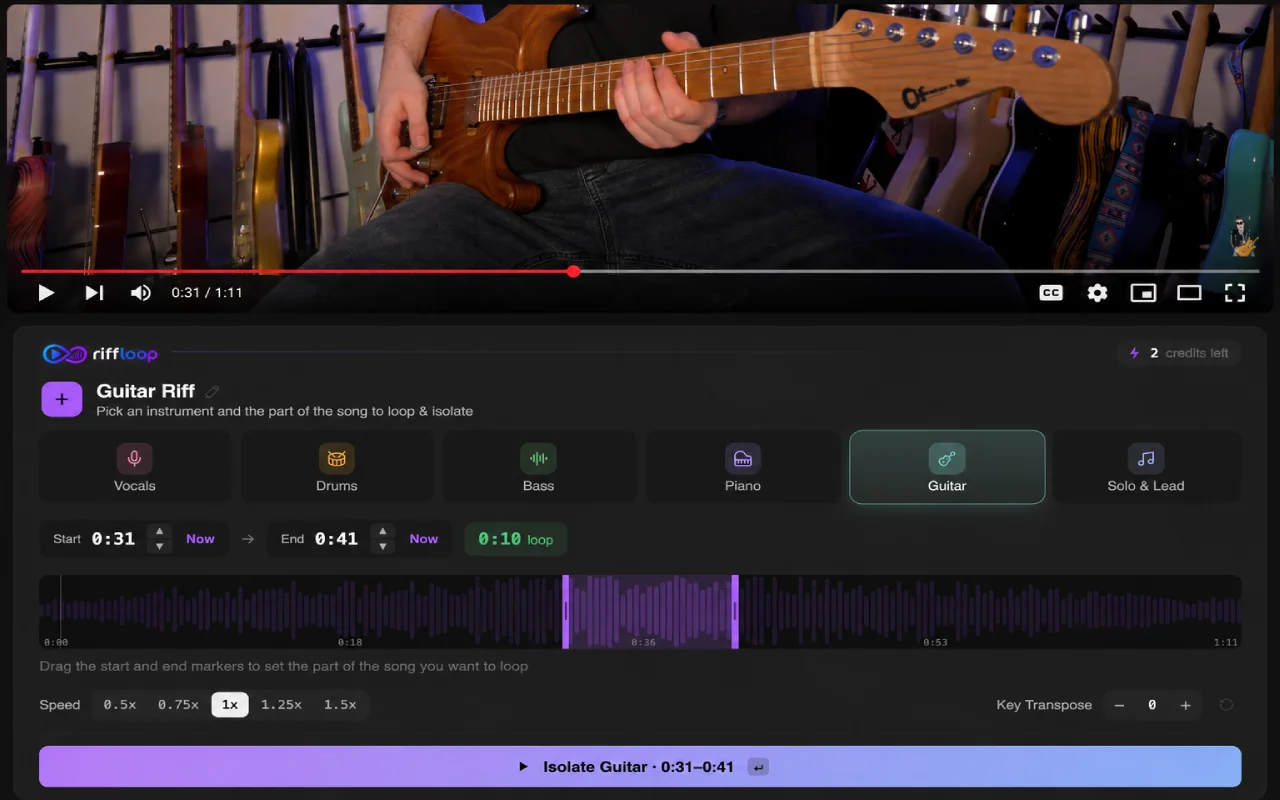
Riffloop turns YouTube into a complete practice studio. Instead of just looping videos, it gives you the tools musicians actually reach for every day — right on the video you're already watching, with nothing uploaded to a server.
A-B looping
Mark a start and an end, and repeat only the section you're working on. Loop a difficult riff, chorus, solo or verse until you can play it without thinking. Drop in straight on a YouTube video, or open your own files in the Studio.
Slow it down — pitch stays clean
Reduce the playback speed of your looped section to hear every note clearly, then bring it back up as you get comfortable — the pitch stays steady, so it never sounds like a chipmunk or a slowed-down record. You can slow down songs in the Studio the same way.
Change the song's key
Need to practice in a different key? Transpose the song up or down instantly, without downloading or editing the original — the tempo stays exactly where it was. Especially useful for singers and saxophone players who need a song to land in their range.
Save your practice loops
Instead of building the same loop from scratch every session, save it and come straight back to it later. That's a real time-saver when you're learning a long song over several days.
- 🔁 A-B loop the exact section you're learning
- 🐢 Slow it down with the pitch kept steady
- 🎼 Change the key to fit your voice or instrument
- 🎚️ Mute vocals or solo a single instrument
- 💾 Save loops and reopen them next time
- 🔒 Runs on your device — nothing uploaded
AI stem separation
Split a song into individual stems with AI stem separation, so you can:
- Mute the vocals
- Hear only the guitar
- Practice with the isolated bass
- Remove the drums
- Focus on the keys
Instead of fighting through a full mix, you hear the exact part you're trying to learn — then loop and slow it down on top. The two clips below show exactly how it works.
Isolate the Instrument You Want to Learn
Add Back Just Enough of the Band
Practice the Way Musicians Actually Learn
When learning a song, hearing an instrument completely isolated is incredibly helpful — but it's not always enough. Most musicians eventually need to hear how their part fits with the rest of the band.
That's why the Riffloop Chrome Extension includes both AI stem separation and a powerful Mixer. Start by isolating the instrument you want to learn — whether it's piano, guitar, bass, drums, vocals, or another instrument. Once you've learned the notes, gradually bring back the other instruments with the mixer: add a little bass to lock in with the groove, or bring back the drums to tighten your timing — all while keeping your instrument loud and clear.
Combine this with A-B looping, speed control, and key changing, and YouTube becomes a complete practice studio built specifically for musicians.
Ready to practice smarter? Install the Riffloop Chrome Extension to isolate instruments, create custom mixes, loop difficult sections, slow songs down, and change keys — all directly on YouTube.
Add Riffloop to Chrome — free →Real Practice Examples
Learning a guitar solo
Say you're learning a solo that's only eight seconds long. Instead of replaying the entire song:
- Mark the beginning of the phrase (A).
- Mark the end (B).
- Slow the playback to around 60%.
- Loop it continuously and play along.
- Nudge the speed back up as you get cleaner.
This is exactly how many teachers recommend practicing a hard passage: slow it down, loop it, and let the repetition build the muscle memory before you bring it up to tempo.
Learning a saxophone melody
Need the melody in a key that suits your horn? With Riffloop you can:
- Change the key so it fits your instrument
- Slow the tempo down to hear the phrasing
- Loop the difficult phrases
- Mute the vocals so the line is exposed
- Repeat until it's comfortable
Learning drums
Isolate the drum stem. Loop a single fill. Slow it down and play until your timing locks in — then move to the next fill and do it again. By the end, you've drilled each tricky bar instead of flailing through the whole track.
YouTube vs. Riffloop
| Feature | YouTube (native) | Riffloop |
|---|---|---|
| Loop the full video | ✓ | ✓ |
| Loop a selected section | ✗ | ✓ |
| A-B looping (set start & end) | ✗ | ✓ |
| Change playback speed | 0.25–2× (whole video) | ✓ Per section |
| Change the song's key | ✗ | ✓ |
| AI stem separation | ✗ | ✓ |
| Mute vocals | ✗ | ✓ |
| Isolate guitar | ✗ | ✓ |
| Isolate bass | ✗ | ✓ |
| Isolate drums | ✗ | ✓ |
| Save practice loops | ✗ | ✓ |
| Designed for musicians | ✗ | ✓ |
Frequently Asked Questions
How do I loop a YouTube video in Chrome?
Open the video in Chrome, right-click anywhere inside the video player, and click Loop. The video then replays automatically every time it ends. This uses YouTube's built-in feature, so you don't need to install anything.
Can I loop a YouTube video without installing anything?
Yes. Right-click the video player and select Loop. That repeats the whole video for free with no extension. To repeat only one section, though, you'll need a tool that supports A-B looping, such as Riffloop.
How do I loop only part of a YouTube video?
YouTube can't loop a section on its own — the built-in Loop only repeats the entire video or playlist. To repeat one part, use a tool with A-B looping, like the Riffloop Chrome extension. You mark a start point (A) and an end point (B), and only that section repeats continuously.
What is A-B looping?
A-B looping lets you set a start point (A) and an end point (B), then continuously repeat only the section between them. It's the standard way musicians drill a hard riff, solo or chord change without replaying the whole song.
Why is the Loop option not showing when I right-click a YouTube video?
You're probably seeing Chrome's own menu instead of YouTube's. Make sure you right-click directly on the video, or try right-clicking a second time (or Shift + right-click) to bring up YouTube's menu. A layout-changing extension can also hide the option, and on the mobile app the Loop choice won't appear while an ad is playing.
Is there a keyboard shortcut to loop a YouTube video?
No — YouTube has no built-in keyboard shortcut for looping; you set it from the right-click menu. The "P" shortcut some people mention comes from a third-party extension (Looper for YouTube), not from YouTube itself.
How do I loop a YouTube video on iPhone or Android?
In the YouTube mobile app there's no right-click, so tap the video, open its Settings (Additional settings), and choose Loop video. If you don't see Loop, wait for any ad to finish first — the option is hidden while a pre-roll ad plays.
How do I turn off looping on a YouTube video?
Right-click the player again and click Loop to toggle it off (the checkmark disappears). On mobile, open the video's settings and switch Loop video off.
Can I slow down a YouTube video while it loops?
Yes. YouTube's gear menu lets you set playback speed from 0.25× to 2× and keeps the pitch steady, so a slowed song stays in the same key. The catch is that the speed applies to the whole video, and you still can't loop just a section. Riffloop slows down the exact part you've looped and pairs it with key and stem controls.
Can I change the key of a YouTube song?
Not with YouTube itself — the player has a speed control but no key or pitch control. Riffloop transposes a song up or down in semitones right in your browser, with the tempo locked, so you can practice in a key that fits your voice or instrument.
Can I isolate vocals or instruments from a YouTube song?
Yes. Riffloop uses AI stem separation to split a song into parts so you can mute the vocals, solo the guitar, keep only the bass, or remove the drums — then loop and slow that part to learn it.
Does Riffloop work directly on YouTube?
Yes. The Riffloop Chrome extension adds its practice tools right on the YouTube video you're watching — no downloading the video and nothing uploaded to a server. You can also open a song in the Riffloop Studio.
How can I repeat one song on YouTube to play while I sleep or study?
Right-click the video and choose Loop to repeat it indefinitely. For an even more reliable loop, add the video to a playlist, press Play all, and turn on the playlist's Repeat button so it keeps going on its own.
Is Riffloop free?
Yes — Riffloop has a free plan. A-B looping, speed control, key changing and stem separation are all available to free users, with daily limits on new separations and saved loops. Riffloop Pro is $5.95/month or $39/year, with a one-time $99 Founder's Lifetime option, and unlocks unlimited separations and an unlimited saved loop library. See full pricing →
Keep exploring Riffloop: head back to the home page, split a YouTube song into separate stems, mute vocals or solo an instrument with the stem splitter, change the key of any song, or slow a track down and loop the hard part in the Studio — all on your device, nothing uploaded.
Loop the Riff. Nail the Song.
Install the Riffloop Chrome Extension and turn YouTube into your personal music practice studio — A-B looping, speed, key and stem separation, right on the video.