How To Loop A Section Of A Song
Looping is the four-bar fix for the one bar you keep fluffing. Drag A and B over the part you want to repeat, and Riffloop plays just that section round and round until your hands know it. It works the same way in the Chrome extension on YouTube and in the Studio, it keeps the original audio untouched, and it never costs a credit.
Good to know
nothing about looping is metered. Riffloop's other three modes separate the song into stems and spend a credit to do it — looping doesn't separate anything, so it costs nothing, on the free plan or any other. Loop as much as you like.
The short version
Set A, set B, press play. On YouTube: open the video, click Loop a section, drag A and B, and it repeats. In the Studio: open the track, press + New loop, drag the handles, then Save to keep it.
- Looping never costs a credit
- Free plan saves 3 loops per song
- Saved loops work across both
What looping actually does
A loop is a start point and an end point. Riffloop plays between them and jumps back to the start instead of carrying on into the next verse. The song's audio is untouched — same pitch, same speed, same mix — unless you deliberately change those yourself.
This guide covers Riffloop's loop feature on both surfaces. If what you want is to repeat a whole YouTube video end to end — including with YouTube's own controls and no extension at all — that's a different job, covered in How to loop a YouTube video in Chrome.
Looping a section is the most useful thing in the product for actually learning a part. Playing a solo from the top twenty times means you practise the easy first bar twenty times and the hard bar at 0:47 twenty times too. Looping bars 5–8 on their own means every repetition lands on the part you can't play yet.
Before you start
You need one of the two places Riffloop runs. Both use the same account, and loops you save in one show up in the other.
- The Chrome extension — works on the YouTube page itself. The panel appears under the player on any
youtube.com/watchvideo; there's nothing to click to summon it. Add Riffloop to Chrome, or see Split a YouTube song into stems for the full install. - The Studio at studio.riffloop.app — takes your own audio files, a YouTube link or a SoundCloud link. Covered in How to use the Riffloop Studio.
You can loop without an account. Signing in is what lets you save loops and find them again later.
Which one should you loop in?
Loop on YouTube with the extension when the song is already a YouTube video; loop in the Studio when you have the audio as a file, or the track lives on SoundCloud. The loop controls themselves are identical — only the way the song gets in front of you differs.
| Chrome extension | Studio | |
|---|---|---|
| Where it runs | On the YouTube page itself | studio.riffloop.app |
| Song comes from | The YouTube video you're watching | Your own audio file, a YouTube link or a SoundCloud link |
| Set the loop | Drag A and B, or type Start / End | + New loop, then drag A and B |
| Costs a credit | No | No |
| Saved loops appear in | Your sections | Your sections (the same list) |
| Works on a phone | No — desktop Chrome | Yes, with an uploaded file |
Loop a section on YouTube (the extension)
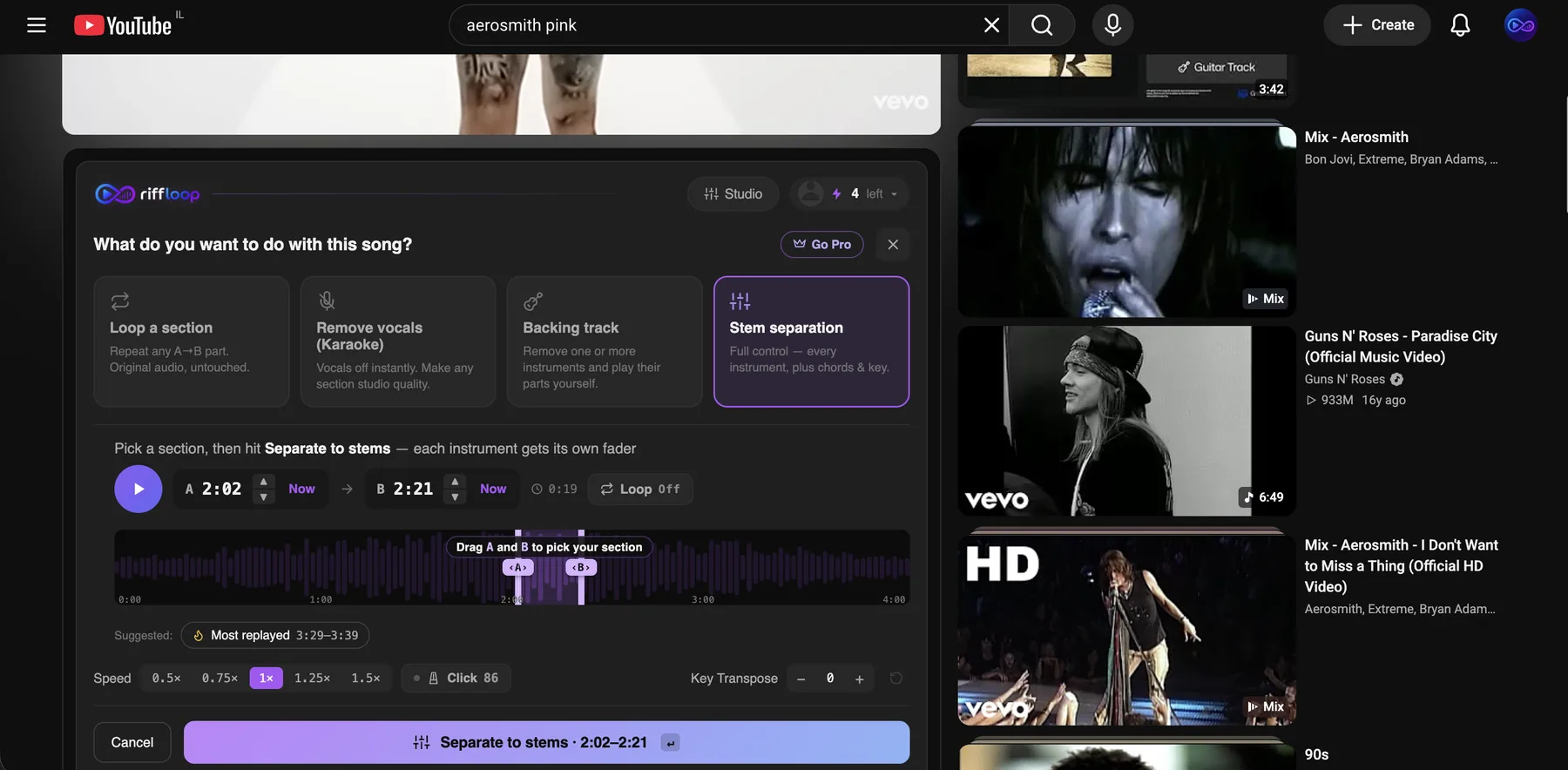
Open the song on YouTube and choose Loop a section in the Riffloop panel — the first of the four goal cards, described as “Repeat any A→B part. Original audio, untouched.” Then drag the two handles to the part you want.
- Play the song and find the part you want to drill.
- Click Loop a section.
- Drag A to where the phrase starts and B to where it ends. The shaded band between them is what will repeat; everything outside it is dimmed.
- Playback jumps to A and starts looping. A Looping pill appears at the top of the panel so you always know the transport is in a loop rather than playing straight through.
Get the loop points exactly right
Dragging gets you close; the Start and End fields get you exact. Type a timestamp into either one when the handle keeps landing a fraction late.
Two habits that make loops feel musical rather than jarring:
- Start a beat early. Put A slightly before the first note, not exactly on it. A loop that starts on the attack clips the note and gives you no run-up; a beat of air lets you breathe in and come in on time.
- End on the downbeat after the phrase, not on the last note. Ending at the bar line is what makes the wrap-around feel like the song going round again instead of a tape splice.
Loop a section in the Studio
The Studio has two ways to loop, and they behave differently. Choose Loop a section on the goal screen to repeat the original audio — free, instant, nothing separated. Separate the song first if you want the loop to apply to individual instruments.
The quick way: Loop a section
Bring in a song — an audio file, a YouTube link or a SoundCloud link — and the Studio asks what you want to do with it. Pick the first card, Loop a section: “Repeat any A→B part. Original audio, untouched.”
- Drag A and B across the waveform, or type exact times into the two fields beneath it.
- Press Save this loop. It confirms with “✓ Loop saved”, jumps to A, and starts looping.
Nothing is separated and no credit is spent. These loops are kept on the device you made them on — they hold no stems, so they don't travel to your other computers or into Your sections. That's the trade for them being free and instant.
The full way: loop inside the mixer
Once a song has been separated into stems you get the mixer, and a second kind of loop. Press + New loop to drop A and B markers on the track and drag them over the part you want. These loops are saved to your account.
Once a loop is set, the mixer behaves like this:
- The band between A and B is highlighted and the rest of the track is dimmed, so the loop is visible at a glance.
- Drag either handle to move one edge; drag anywhere inside the band to slide the whole window — useful when the loop is the right length but starts half a bar late.
- The transport's loop button toggles between Looping the section and Play straight through.
Save a loop so it's there tomorrow
Press Save on a loop in the mixer and it's stored on your account. (A Loop a section loop saves too, but only on that device — see above.) Give it a name when you save it — “solo bar 33”, “chorus harmony”, “the bit I keep rushing” — because a list of loops all called by their timestamps is a list you won't read.
Account-saved loops live under Your sections. Each row shows the loop's name, the song, the time range, and a badge saying where it opens: a red YouTube badge for loops made on a YouTube video, a Studio badge for loops made from a file or link. Click anywhere on the row to open that loop again.
Names are worth a moment's thought. You can rename a saved loop later with the pencil, and deleting one asks for confirmation first, so nothing disappears on a mis-click.
How many loops you can save
On the free plan you can save three loops per song to your account. Pro and Founder Lifetime accounts save as many as they like. The cap counts the loops that sync — the device-only loops you make with Loop a section are not counted and are never refused. The limit is per song, not per account — three on this track, three on the next one, and so on.
Two details worth knowing, because they're the ones that surprise people:
- Editing an existing loop always saves, even at the cap. Only a brand-new fourth loop on the same song is refused, so you can keep adjusting the three you have as much as you want.
- Saving a loop is not a credit. Credits are spent on separating a song into stems. Loops are a separate, much simpler thing — see How credits work for what a credit actually buys.
If a save doesn't take, that cap is almost always the reason: you already have three loops on that particular song. Delete one you've outgrown, or upgrade.
Reopen a saved loop
Open Your sections and click the row. (Device-only loops from Loop a section aren't listed there — they reappear beside the track on the machine you made them on.) A loop made in the Studio reopens the track with that range already armed and playing; a loop made on YouTube takes you back to the video at the right moment, where the extension picks it up.
This is the part that turns looping from a nice playback trick into a practice routine. The four bars you couldn't play on Tuesday are one click away on Wednesday, at exactly the same boundaries, so you can hear a week of progress on the same eight seconds of music.
Leave the loop
Click anywhere on the dimmed part of the track, outside the loop band, and playback leaves the loop and continues from where you clicked. You can also click the Looping pill itself to exit and play the whole track.
Leaving the loop doesn't delete it. If it was saved, it stays in Your sections; you're just telling the player to stop repeating for now. Playing the whole song through after drilling a loop is worth doing deliberately — a phrase you've only ever played in isolation has a habit of falling apart when the bar before it arrives at speed.
Loop one instrument instead of the whole band
Looping and stem separation stack. Separate the song first, and the loop then applies to whatever mix you've set on the faders — so you can repeat four bars with only the bass audible, or with the guitar muted so you play that part yourself.
That combination is the one worth learning: loop the phrase, solo the instrument, slow it down, and play along. Isolating a part is covered in Split a YouTube song into stems, and muting one instrument to play it yourself in Get the chords to any song.
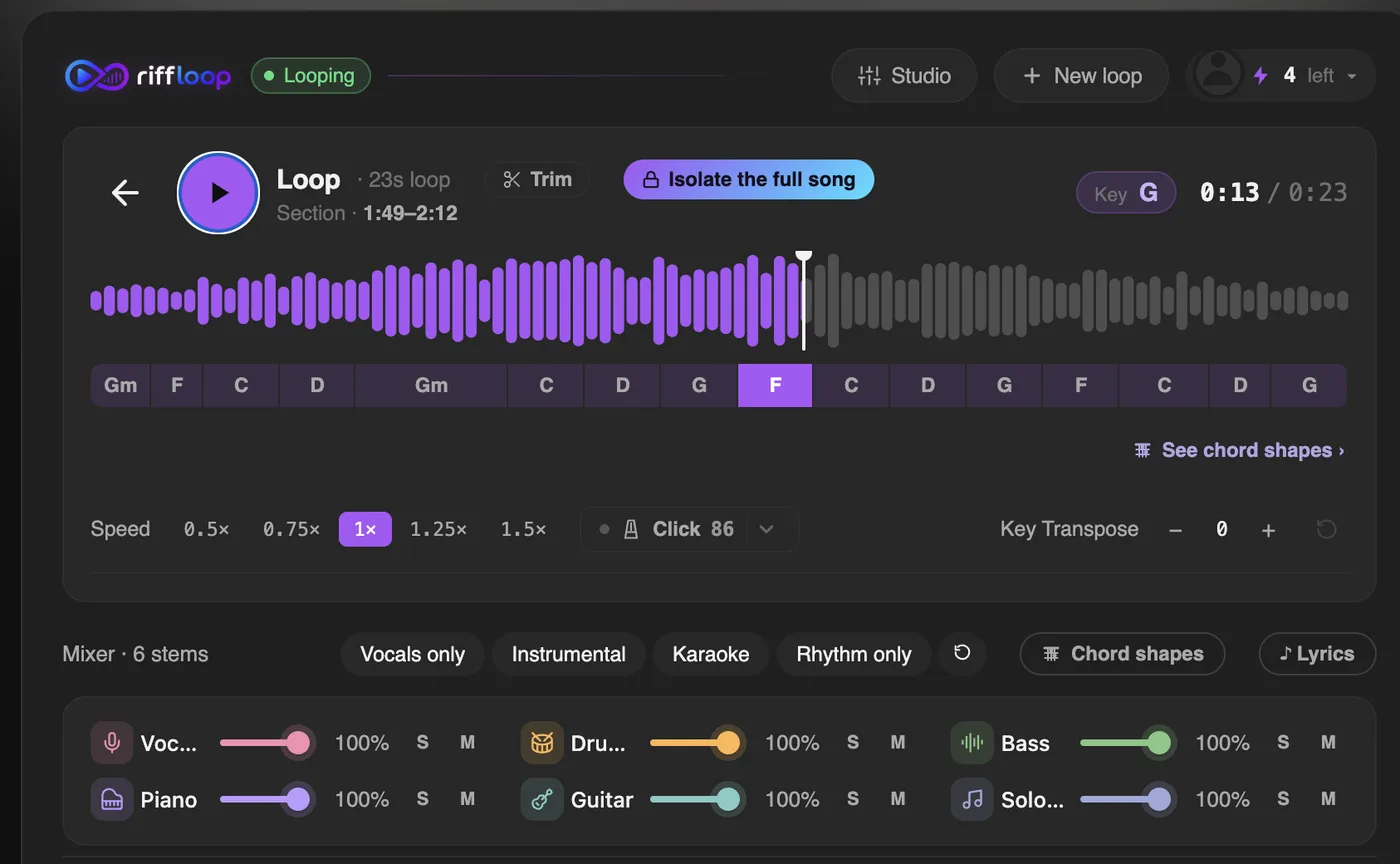
Speed and key work inside a loop too. Slowing a loop down is the standard way to learn a fast phrase; both controls sit in the same panel, and there's more on each in Slow down songs without changing pitch and Change the key of a song.
A loop routine that works
Loop small, play it slow enough to be accurate, and only speed up once it's clean five times running. Most people loop too much music, too fast, and practise their mistakes.
- Loop four bars, not sixteen. If you can't sing the part from memory, the loop is too long. Shorten it until you can.
- Drop the speed until you play it right. Not until it's easy — until it's correct. For most people that's somewhere near 70%. Playing a passage wrong at full speed just rehearses the mistake.
- Five clean in a row, then move the speed up one notch. One clean run is luck. Five is the part starting to stick. If you miss, drop back a notch and earn it again.
- Widen the loop by a bar. The join is what breaks first — you'll play the phrase perfectly and fall apart on the bar leading into it. Move A one bar earlier and drill the approach.
- Save it and come back tomorrow. Sleep does more for a passage than a fourth consecutive hour does. Reopen the saved loop and start where you left off.
Slowing a loop down is covered in Slow down songs without changing pitch; the pitch stays correct at every speed, so a phrase at 70% is still in the same key you'll play it in.
What looping won't do
Riffloop is a practice tool that plays a song back, not a downloader or an editor. Specifically:
- A loop doesn't export as an audio file. It's a playback range saved to your account, not a clip on your disk.
- Loops need the source. A YouTube loop reopens the YouTube video; if that video is taken down, the loop's boundaries survive but the audio doesn't.
- The extension works on desktop Chrome. On a phone, use the Studio with an uploaded file — screen capture isn't available on mobile browsers.
If what you want is to repeat a whole YouTube video from beginning to end rather than a section of it, that's a different job with a few different answers — including YouTube's own right-click Loop — and it's covered in How to loop a YouTube video in Chrome.
Frequently asked questions
Does looping use a credit?
No. Looping is free and unmetered on every plan, because it doesn't separate the song into stems. Credits are only spent by Stem separation, Remove vocals and Backing track.
How many loops can I save per song?
Three per song on the free plan; unlimited on Pro and Founder Lifetime. The limit counts brand-new loops only — editing one of your existing three always saves, even at the cap.
Why did my loop not save?
Almost always because you already have three saved loops on that song and you're on the free plan. Delete one you've finished with, or upgrade. Editing an existing loop is never blocked.
Where do my saved loops go?
To Your sections, on your account. Each row shows the name, song, time range and a badge for where it opens — YouTube or Studio. Clicking the row reopens that loop.
Do loops saved in the extension show up in the Studio?
Account-saved loops are shared — both surfaces write to the same list, and the badge on each row tells you where a loop opens. Loops made with Loop a section are the exception: they carry no stems and stay on the device that made them, in the Studio and the extension alike.
Can I loop a section without signing in?
Yes. Looping itself works signed out. Signing in is what lets you save a loop and find it again later.
Can I loop part of a song I have as a file, not on YouTube?
Yes. The Studio takes audio files from your computer, as well as YouTube and SoundCloud links, and looping works identically on all of them.
Can I slow a loop down?
Yes, and the pitch stays correct when you do. The speed control applies inside the loop, so the section repeats at whatever tempo you set.
How do I get out of a loop?
Click anywhere on the dimmed part of the track outside the loop, or click the Looping pill. Playback continues through the whole song; the saved loop stays in Your sections.
Can I loop a single instrument?
Yes, once the song has been separated into stems. The loop applies to whatever mix the faders are set to, so you can repeat a phrase with only the bass audible, or with the guitar muted so you play it yourself.
Can I download a loop as an audio file?
No. Riffloop plays songs back for practice in the browser; a loop is a saved playback range, not an exported clip.
Still need help? Contact the Riffloop support team →